Turning your iPad into a productivity machine starts with a smooth Bluetooth keyboard connection. Whether you’re a student, professional, or just using it for fun, learning to pair a keyboard with your iPad can make typing easier and work more efficient.
Modern iPads work well with many keyboards, making setup easy. Apple has made it simple to connect Bluetooth keyboards from brands like Logitech, Zagg, and Apple’s Magic Keyboard. This ensures your iPad and keyboard work well together, no matter the model or iOS version.
This guide will show you how to pair your keyboard with your iPad easily. We’ll cover everything from checking if your devices are compatible to making a perfect wireless connection.
With our expert tips, you’ll learn to pair your keyboard quickly. You’ll unlock your iPad’s full potential as a work and communication tool.
Essential Requirements Before Pairing Your Keyboard to iPad
Getting ready to sync a wireless keyboard with your iPad needs some planning. Before you start, make sure everything is ready for a smooth pairing.
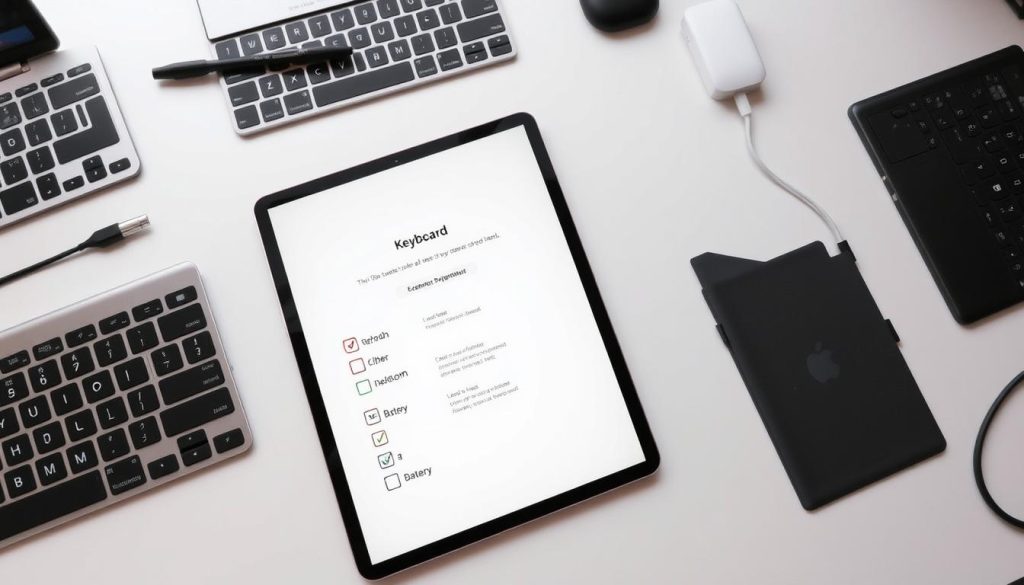
Checking iPad Compatibility and iOS Version
Not every keyboard works with every iPad. To find the right keyboard for your iPad, follow these steps:
- Check your iPad’s iOS version in Settings > General > About
- Verify the minimum iOS version needed for Bluetooth keyboards
- Make sure your device’s software is current
Preparing Your Keyboard for Connection
When using a wireless keyboard, getting it ready is key. Different keyboards need different setups:
- Charge your wireless keyboard fully before pairing
- Turn on Bluetooth mode on the keyboard
- Keep the keyboard close to your iPad
Understanding Different Keyboard Types
iPad users have many keyboard options. The Apple Magic Keyboard and Logitech keyboards are popular. Each has its own features:
- Apple Magic Keyboard: Sleek design, built-in trackpad
- Logitech keyboard: Versatile, works with many devices
- Bluetooth keyboards: Offers a flexible wireless connection
Knowing these requirements will help you pair your keyboard with your iPad successfully.
How to Pair Keyboard to iPad: Step-by-Step Process
Connecting an external keyboard to your iPad is easy and boosts your device’s productivity. You can use a Bluetooth keyboard or a wired one. The steps are simple and take just a few minutes.
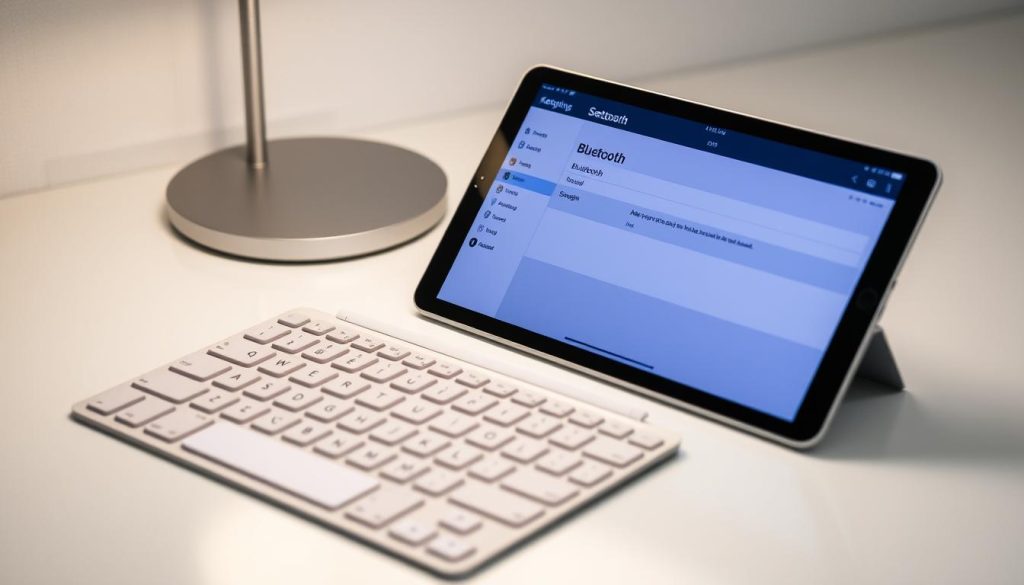
- Open your iPad’s Settings app
- Tap on “Bluetooth” and ensure it’s turned on
- Put your external keyboard into pairing mode (usually by holding a specific button)
- Wait for the keyboard to appear in the available devices list
- Select the keyboard to complete the connection
After pairing, explore keyboard shortcuts to make your iPad better. Most keyboards support shortcuts like copy (Command + C), paste (Command + V), and switching apps (Command + Tab).
If you have connection problems, here are some quick fixes:
- Check if your keyboard’s batteries are charged
- Restart both the iPad and keyboard
- Move closer to reduce Bluetooth interference
- Forget the device in Bluetooth settings and re-pair
Once connected, test your keyboard by typing in a text document. With practice, you’ll get used to your new keyboard setup.
Conclusion
Pairing a keyboard with your iPad is easy and can make your device much more useful. You can choose from Bluetooth keyboards or special iPad keyboards. The right one can change how you use your tablet.
Flexibility is key. There are many keyboards to try, from small wireless ones to big mechanical keyboards. Finding the best one for you will make typing on your iPad better.
Apple makes it easy to connect keyboards to your iPad. Just follow our guide to start typing better. Make sure your iPad and keyboard are ready, and follow the Bluetooth steps carefully.
Your iPad can do more than ever with the right keyboard. It can help you write, email, or create content anywhere. Use your device to its fullest and enjoy typing without hassle.